How to post on Google Business Profile (updates, events, offers and review replies)
A step by step guide to scheduling Google Business Profile posts, choosing between What’s New, Event and Offer, avoiding rejected posts, tracking calls and clicks, and replying to reviews.
7 minute read

Software engineer and SaaS founder
In this article
- What you can post on Google Business Profile
- Step 1: Connect your Business Profile
- Step 2: Write a short, useful update
- Step 3: Add a photo
- Step 4: Choose a button
- Step 5: Set up events and offers
- Step 6: Preview, then schedule
- Step 7: See what people do on your profile
- Step 8: Reply to your reviews
- Common questions
- Ten minutes a week
When someone searches for your business on Google or finds you on Maps, your Business Profile is often the first thing they see. Before they visit your website, they see your hours, your photos, your reviews and, if you post, what’s new.
Most businesses set up the profile once and never touch it again. Posting a fresh update every week or two and answering reviews shows people that someone is home. It takes a few minutes if you plan it with the rest of your social posts.
In short: connect your verified Business Profile, pick a post type (What’s New, Event or Offer), write a short update without a phone number, add one photo and a button, then schedule it. Check your calls, website clicks and direction requests every few weeks, and reply to every review.
What you can post on Google Business Profile#
Google gives you three kinds of post. Each one suits a different job:
| Post type | Use it for | What it needs |
|---|---|---|
| What’s New | News, tips, new products, behind the scenes | Some text. A photo and a button are optional. |
| Event | Workshops, launches, open days, live music | A title and start and end dates, with optional times |
| Offer | Sales, discounts, seasonal deals | A title and start and end dates, plus an optional coupon code, redeem link and terms |
If you’re not sure, start with What’s New. Use Events and Offers when there’s a date that matters to your customers.
Step 1: Connect your Business Profile#
In PostGic, open Channels, choose Google Business Profile and sign in with the Google account that manages your business. If you manage the profile from a different Google account than the one you use day to day, Google lets you pick it on the sign in screen.
A few things to know:
- Your profile needs to be verified. Google only lets apps post to verified profiles. If yours isn’t verified yet, finish that at business.google.com first.
- Each location is its own channel. If you run a café with two branches, you’ll see both and can choose which to connect. That way each location gets posts that fit it.
- Leave the permission box ticked on Google’s screen. PostGic needs it to list your locations, publish posts and read your reviews.
See everything PostGic supports on each network on the channels page.
Step 2: Write a short, useful update#
Google Business Profile posts can be up to 1,500 characters, but the first line or two is all most people read. Lead with the point:
- Say what’s new in plain words: “Our autumn menu is here” beats “Exciting news!”
- Be specific about dates, prices or what’s included.
- Write for someone nearby who might visit this week.
If the same news is also going to Instagram, Facebook or LinkedIn, write it once in PostGic’s global editor, then click your Business Profile to adjust the wording just for Google.
Don’t put a phone number in the text#
This is the most common reason Google rejects a post. Posts can’t contain phone numbers. If you want people to call, add the Call now button instead. It dials the number already on your profile.
Step 3: Add a photo#
Each post can include one photo, as a JPG or PNG. Videos and GIFs aren’t supported for posts.
Pick a photo that shows the real thing: the dish, the storefront, the product on the shelf, the team at work. Real photos usually do better here than designed graphics with lots of text.
Step 4: Choose a button#
What’s New and Event posts can have a call to action button. Pick the one that matches what you want people to do next:
| Button | Good for |
|---|---|
| Book | Appointments, tables, classes |
| Order online | Takeaway, delivery, online orders |
| Buy | A product page |
| Learn more | A blog post, menu or details page |
| Sign up | Newsletters, waitlists, events |
| Call now | A quick call, using the phone number on your profile |
Every button except Call now needs a link that starts with https://. Offers don’t use a button; they link to your redeem link instead.
Step 5: Set up events and offers#
For an Event, give it a title (up to 58 characters) and choose when it starts and ends. Add times if it runs at a specific hour, or leave them empty for an all-day event.
For an Offer, add a title and the dates it runs. Then, if they apply:
- a coupon code people can show or enter,
- a link to redeem the offer online,
- short terms and conditions, like “Valid in store only” or “One per customer”.
Dates and times are in your business’s local time zone, as set on Google. So a 9 AM opening shows as 9 AM to your customers, wherever you happen to be when you schedule it.
Step 6: Preview, then schedule#
Check the preview, then choose when it goes out:
- Pick a time for anything tied to a date, like an event or the first day of a sale.
- Add to queue for regular updates, which fill the next free slot in your posting schedule.
A simple rhythm that’s easy to keep up:
| Week | Post |
|---|---|
| 1 | What’s New: a new product, service or menu item |
| 2 | Event or Offer, if you have one coming up |
| 3 | What’s New: behind the scenes or a customer favorite |
| 4 | What’s New: a tip or answer to a question customers often ask |
Plan it next to your other channels in your content calendar, so your Google posts don’t become an afterthought.
Step 7: See what people do on your profile#
Open Analytics and choose your Business Profile. You’ll see, day by day:
- Profile views on Google Search and Maps,
- Calls from your profile,
- Website clicks,
- Direction requests.
Google reports these for the whole profile, not for each post. So instead of asking “which post won?”, look at the trend. Did calls go up the week you posted an offer? Did direction requests rise around your event? Compare each period with the one before it and plan your next few posts around what moved.
Step 8: Reply to your reviews#
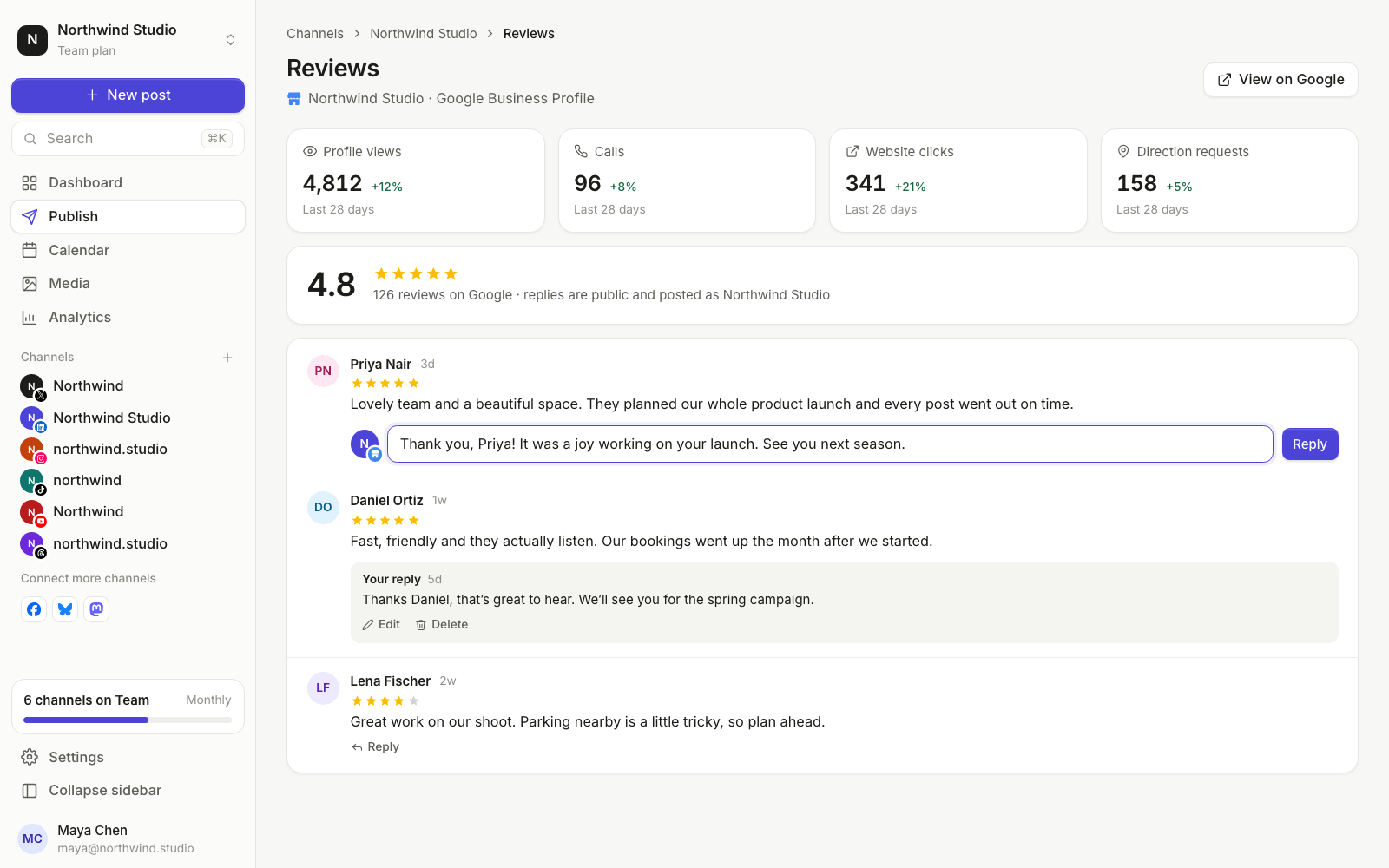
Reviews are a big part of what people see on your profile, and replies are public. On your Business Profile’s Reviews tab in PostGic, you can read every review with its star rating, see your average rating, and reply as your business. You can also edit or delete a reply later.
A few habits that help:
- Reply to every review, good and bad. A short thank you is fine for a five star review.
- Use their name and mention something specific they said, so it doesn’t read like a template.
- For a negative review, stay calm and take it offline. Apologize for the experience, say what you’ll do, and invite them to contact you. Remember, no phone numbers in your text either; point them to your website or email instead.
- Reply within a day or two. Fast replies show people that you pay attention.
PostGic only posts a reply when you click to. It never replies to reviews automatically.
Common questions#
Can I schedule Google Business Profile posts in advance?#
Yes. Write the post, choose its type and button, and pick a date and time or add it to your queue. PostGic publishes it to your profile when the time comes.
Why was my Google Business Profile post rejected?#
The most common reason is a phone number in the text. Remove it and use the Call now button instead. Posts also have to follow Google’s content policies, so avoid misleading claims and keep it about your business.
Can I post a video to Google Business Profile?#
Not through posts. Each post can have one JPG or PNG photo.
I have several locations. Do I post to each one?#
Each verified location connects as its own channel. Pick all of them in the composer when a post applies everywhere, or just one for news about a single branch. You can adjust the text for each.
Does PostGic store my reviews?#
No. Reviews are loaded from Google when you open the Reviews tab, and replies are posted to Google only when you click Reply. See the Privacy Policy for details.
Ten minutes a week#
Pick one update, one photo and one button, and schedule it with the rest of this week’s posts. Then spend five minutes answering new reviews. That’s enough to keep your Google listing looking alive.
Start on PostGic’s free plan, with no credit card needed. Get started for free.
 Anuj Shashimal