How to build a social media content calendar you’ll actually keep (+ a simple template)
A content calendar doesn’t need to be a giant spreadsheet. Here’s a simple, repeatable way to plan a month of posts, with a template you can copy today.
6 minute read

Software engineer and SaaS founder
In this article
- What a content calendar is (and isn’t)
- Step 1: Choose 3 to 5 content themes
- Step 2: Decide how often you’ll post
- Step 3: Give each theme a slot
- Step 4: Plan a month of ideas in one sitting
- Step 5: Write and schedule one week at a time
- Step 6: Review the month, then adjust
- A simple content calendar template
- Common questions
- Start small
Most content calendars die in week two.
They start as a beautiful spreadsheet with color codes and twelve columns, and then a busy Tuesday happens. Nobody fills in the cells, the posts stop, and the spreadsheet quietly becomes a monument to good intentions.
The fix isn’t a better spreadsheet. It’s a smaller one. This guide shows you how to build a content calendar that takes about an hour to set up and about an hour a week to keep alive.
In short: pick 3 to 5 content themes, give each one a regular slot in your week, plan a month of ideas in one sitting, then write and schedule one week at a time.
What a content calendar is (and isn’t)#
A social media content calendar is a plan of what you’ll post, where, and when. That’s it.
It is not a strategy document, a brand book or a list of every idea you’ve ever had. Those things are useful, but they’re not what keeps you posting. What keeps you posting is knowing, on a Monday morning, what this week’s posts are about.
A good calendar answers three questions at a glance:
- What are we posting this week?
- Which channels is each post going to?
- Is anything missing, doubled up, or too heavy on one topic?
Step 1: Choose 3 to 5 content themes#
Themes (some people call them pillars) are the recurring topics your account is known for. They stop you from staring at a blank page, because you never start from “what should I post?”. You start from “what’s this week’s tip?”.
Good themes are specific to you. Here are a few examples:
| If you are… | Your themes could be… |
|---|---|
| A solo founder | Build in public, lessons learned, customer stories, product updates |
| A local café | New on the menu, behind the counter, regulars, events |
| A freelance designer | Before and after, process, quick tips, client results |
| A small SaaS team | How-to tips, feature launches, team culture, user wins |
Three themes are enough to start. Five is plenty. More than that and the calendar gets harder to fill, not easier.
Step 2: Decide how often you’ll post#
Pick a rhythm you can keep in your worst week, not your best. Consistency beats volume, and a calendar you can fill is worth more than an ambitious one you can’t.
A sensible starting point for most small accounts:
- X, Threads and Bluesky: 3 to 5 posts a week
- LinkedIn: 2 to 3 posts a week
- Instagram and TikTok: 2 to 3 posts a week
- YouTube: whatever you can produce well, even if that’s twice a month
If that feels like a lot, halve it. You can always add more once the habit sticks.
Step 3: Give each theme a slot#
This is the part that makes a calendar easy to keep. Instead of deciding every week what goes where, give each theme a regular day.
For example:
| Day | Theme | Channels |
|---|---|---|
| Monday | Quick tip | X, Threads, LinkedIn |
| Wednesday | Behind the scenes | Instagram, TikTok |
| Thursday | Customer story | LinkedIn, Facebook |
| Friday | Weekly roundup | X, Bluesky, Mastodon |
Now every week has a shape. You just fill in the specifics.
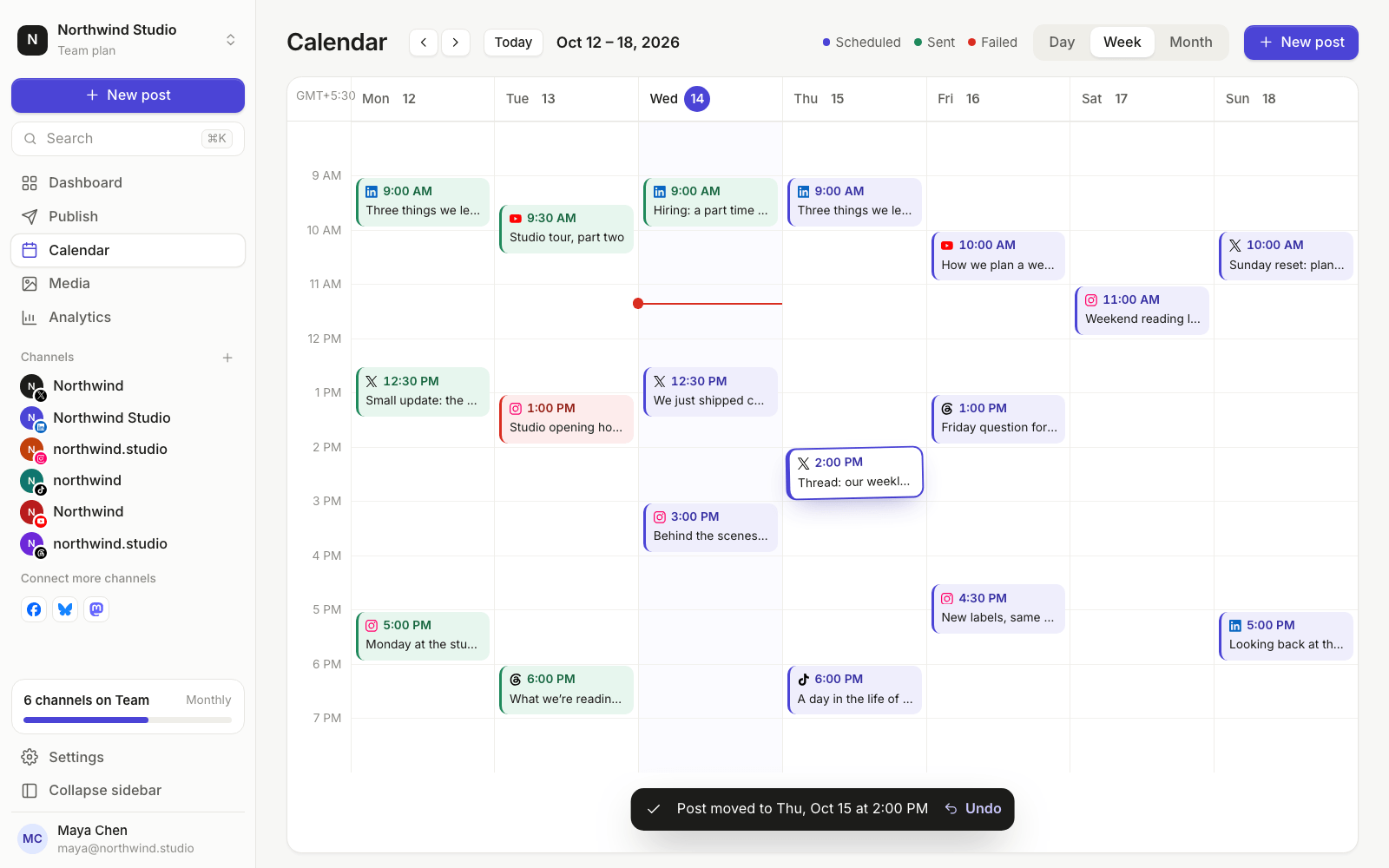
In PostGic, you can mirror this in your posting schedule: set the times you want to post on each day once, and every post you add to the queue drops into the next free slot. We cover how the queue works in how to schedule social media posts.
Step 4: Plan a month of ideas in one sitting#
Once a month, sit down for 30 to 45 minutes and fill your slots with ideas. Not finished posts, just one line each:
- Mon: Tip — how we answer support emails in under an hour
- Wed: BTS — packing orders on a Friday
- Thu: Story — how Priya’s studio saved 5 hours a week
Four weeks of slots at four posts a week is only 16 one-line ideas. That’s very doable, and it means you never start a week empty-handed.
A few places to find ideas when you’re stuck:
- Questions people ask you. Every repeated question is a post.
- Your best posts from last month. Make a new version, in a new format.
- Your calendar. Launches, events, holidays and seasons give you natural hooks.
- Your notes app. Keep a running list and raid it once a month.
Step 5: Write and schedule one week at a time#
Planning a month ahead is great. Writing a month ahead usually isn’t, because posts go stale and plans change.
So write one week at a time. Once a week:
- Take that week’s one-line ideas and turn them into posts.
- Write each post once, then adjust it for each channel.
- Schedule them, and close the laptop.
In PostGic, you write the post once in the global editor, then click any channel to tailor its text or media. Drafts are handy for ideas that aren’t quite ready, and tags let you label posts by theme, so you can see at a glance whether your week leans too hard on one topic.
Step 6: Review the month, then adjust#
At the end of each month, look back before you plan forward. Two questions are enough:
- Which themes did best? Give them more slots.
- Which slots were hardest to fill? Change the theme, or drop the slot.
PostGic’s Analytics show followers, impressions, engagements and your top posts for each channel, compared with the previous period. If you want a deeper look at timing, read how to find your best time to post.
A simple content calendar template#
Copy this into a doc, a spreadsheet or a notes app. It’s deliberately small.
| Week | Day | Theme | Idea (one line) | Channels | Status |
|---|---|---|---|---|---|
| 1 | Mon | Quick tip | Idea | ||
| 1 | Wed | Behind the scenes | Idea | ||
| 1 | Thu | Customer story | Idea | ||
| 1 | Fri | Roundup | Idea |
Use three statuses: Idea, Written and Scheduled. If it’s scheduled, it lives in your scheduler, and you don’t need to track it anywhere else.
Common questions#
Do I need a spreadsheet if I use a scheduler?#
Not really. A spreadsheet is useful for the monthly brainstorm. Once a post is written and scheduled, your scheduler’s calendar is your content calendar. Keeping two copies in sync is how calendars fall apart.
How far ahead should I plan?#
Plan ideas a month ahead and write a week ahead. That keeps you organized without locking you into posts that feel out of date by the time they go out.
Should every channel get the same post?#
The same idea, usually. The same words, rarely. A LinkedIn post can carry more context, while X and Threads reward something short. We go deeper on this in how to schedule LinkedIn posts and how to schedule Instagram posts.
What if I miss a week?#
Skip it and start again on Monday. Don’t try to catch up by posting twice as much. The calendar exists to make posting easier, not to make you feel behind.
Start small#
Choose three themes. Give each one a day. Write this week’s posts and schedule them. That’s a content calendar, and it’s one you’ll actually keep.
PostGic has a free plan for up to 3 channels, with no credit card needed. Get started for free.
 Anuj Shashimal