How to schedule LinkedIn posts (a simple guide for founders and creators)
How to plan, write and schedule LinkedIn posts ahead of time, with tips on hooks, formatting and how often to post, so your profile stays active without daily effort.
5 minute read

Software engineer and SaaS founder
In this article
- Why schedule LinkedIn posts at all?
- Step 1: Connect your LinkedIn profile
- Step 2: Write a first line worth stopping for
- Step 3: Format for skimming
- Step 4: Add an image or video (optional)
- Step 5: Check the preview, then schedule
- How often should you post on LinkedIn?
- After you post: stay for the comments
- How to measure what’s working
- Common questions
- Your next three LinkedIn posts
LinkedIn is one of the best places to be seen as a founder, freelancer or creator. It’s also one of the easiest to neglect, because posting there feels like work you can always do tomorrow.
Scheduling takes “tomorrow” off the table. You write a few posts when you have time to think, and they go out on the days you chose.
In short: connect your LinkedIn profile, write posts that lead with a strong first line, format them for easy reading, check the preview, then schedule them two or three times a week.
Why schedule LinkedIn posts at all?#
Three reasons:
- Better posts. You write when you have time to think, not five minutes before a meeting.
- Consistency. Two posts a week, every week, beats a burst of ten followed by a month of silence.
- Time back. You stop opening LinkedIn “just to post” and getting lost in the feed for half an hour.
Step 1: Connect your LinkedIn profile#
In PostGic, open Channels, choose LinkedIn and sign in to approve access. PostGic publishes to your personal LinkedIn profile, which is where most founders and creators build their audience anyway.
See the channels page for everything PostGic supports on each network.
Step 2: Write a first line worth stopping for#
LinkedIn shows only the first few lines of a post before “see more”. That opening is your headline. A few patterns that work:
- A clear claim: “We cut our support replies from a day to an hour. Here’s the one change that did it.”
- A specific number: “I’ve sent 400 cold emails this year. 3 lessons.”
- A short story opener: “Last Tuesday a customer called to cancel. By Friday they’d upgraded.”
Avoid warming up. Put the point first and the context after.
Step 3: Format for skimming#
LinkedIn posts can be up to 3,000 characters, but long doesn’t mean dense. Most people read on a phone, so:
- Use short paragraphs, often just one or two sentences.
- Leave white space between ideas.
- Use lists when you’re sharing steps or lessons.
- End with a question if you want comments, or a simple takeaway if you don’t.
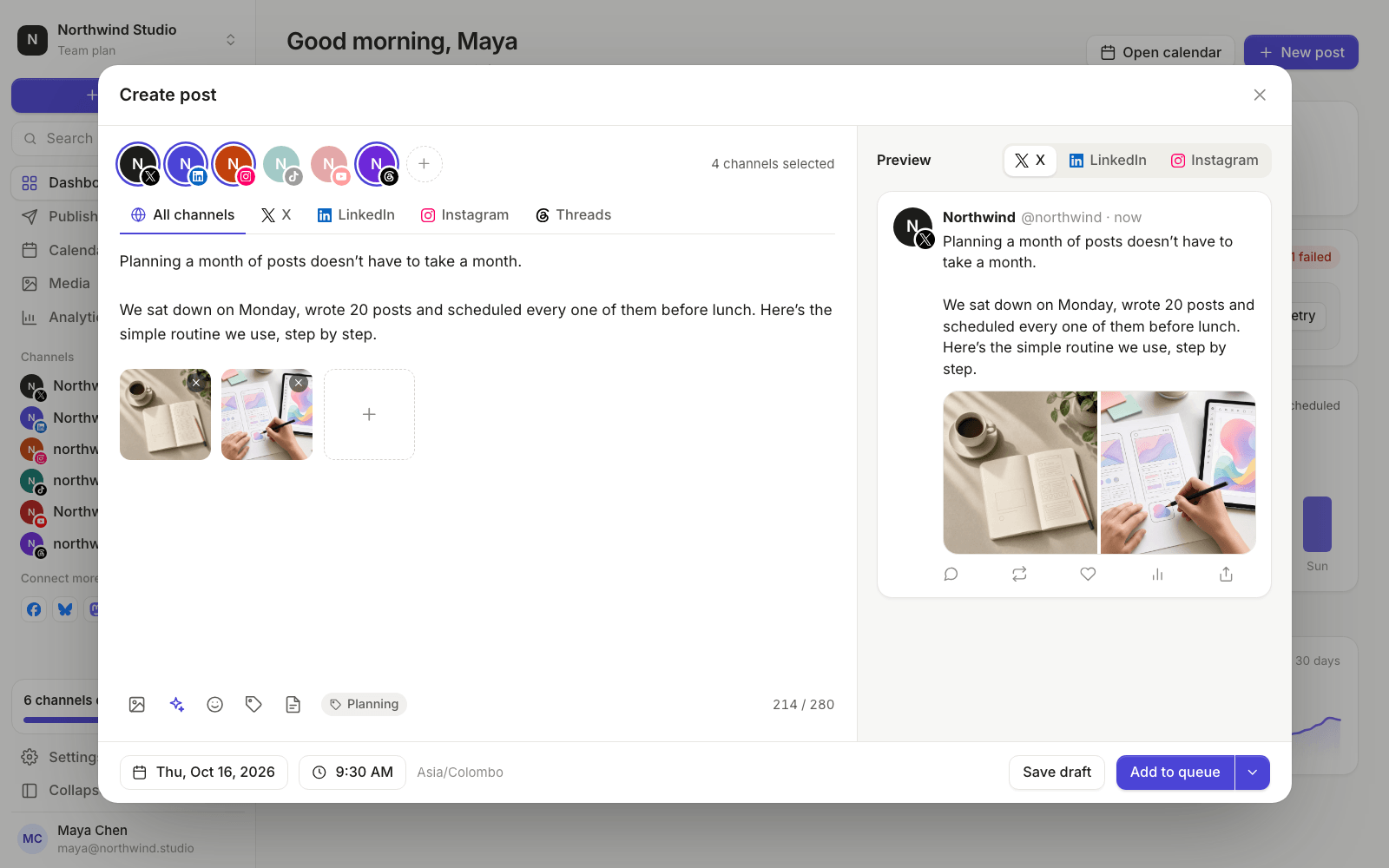
If the same idea is also going to X, Threads or Bluesky, write it once in PostGic’s global editor, then click LinkedIn to give it the longer, more detailed version. The short version goes to the other networks.
Step 4: Add an image or video (optional)#
Text-only posts do well on LinkedIn, so don’t feel you need media every time. When you do add it, keep it simple: a clear photo, a screenshot of something you made, or a short video of you explaining one idea.
Your images and videos live in PostGic’s media library, so you can reuse them across posts and channels.
Step 5: Check the preview, then schedule#
Look at the LinkedIn preview to make sure the first lines read well and nothing important hides behind “see more”. PostGic checks the character limit before you schedule and points to the channel that needs fixing if something doesn’t fit.
Then choose when it goes out:
| Option | Use it for |
|---|---|
| Pick a time | Announcements, launches and anything tied to a date |
| Add to queue | Your regular posts, filling your next free LinkedIn slot |
| Add to top of queue | A post that should go out next, without picking a time |
| Post now | Reacting to something happening today |
For most people, the queue is the way to go. Set up two or three LinkedIn slots a week, such as Tuesday and Thursday mornings, and keep the queue topped up.
How often should you post on LinkedIn?#
Two or three times a week is a great rhythm for most founders and creators. It’s enough to stay visible without running out of things to say.
If that feels like a stretch, start with one post a week and build from there. Planning your themes in advance helps a lot, and our guide to building a content calendar you’ll actually keep shows how.
After you post: stay for the comments#
Scheduling handles the posting. It doesn’t replace conversation. When a post goes live, spend a few minutes replying to comments. On LinkedIn, the conversation under a post is often where the real relationships start.
How to measure what’s working#
LinkedIn shows impressions and reactions for each of your posts in its own analytics. PostGic’s Analytics rely on the metrics each platform’s API provides, and they don’t include LinkedIn. So check LinkedIn directly, and note which posts did better than usual and why.
For the other networks you post to, PostGic’s Analytics show followers, impressions, engagements and top posts in one place. Our guide to finding your best time to post explains how to use them.
Common questions#
Can I schedule posts to a LinkedIn company page?#
PostGic currently connects LinkedIn personal profiles. If you run a company page as well, it’s worth knowing that for many founders, posts from a personal profile reach more people than the same post from a page.
Does scheduling hurt reach on LinkedIn?#
There’s no good evidence that it does. What affects reach is the post itself and the conversation it starts. A thoughtful scheduled post will do better than a rushed live one.
Can I post the same thing on LinkedIn and X?#
You can share the same idea, but tailor the words. LinkedIn suits more context and story, while X rewards something short. In PostGic you write once and adjust each channel’s version before scheduling. Our guide on how to schedule social media posts has more on this.
Your next three LinkedIn posts#
Pick three things you learned this month. Write a strong first line for each. Schedule them for next Tuesday, Thursday and the Tuesday after.
You can do all of that on PostGic’s free plan. Get started for free.
 Anuj Shashimal